Your profile helps other members understand who you are and what you drive. Filling out a few basic fields improves community interaction and makes technical discussions easier.
Follow these steps:
Step 1 — Open Your Profile
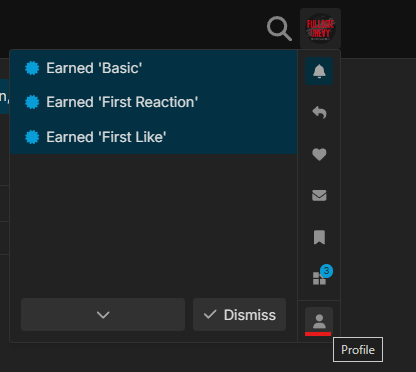
Click your profile picture in the top right corner of the forum.
Step 2 — Go to Preferences
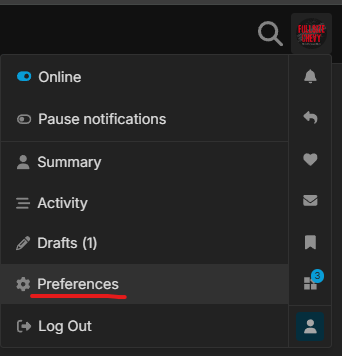
Select Preferences from the dropdown menu.
Step 3 — Find the Profile Field
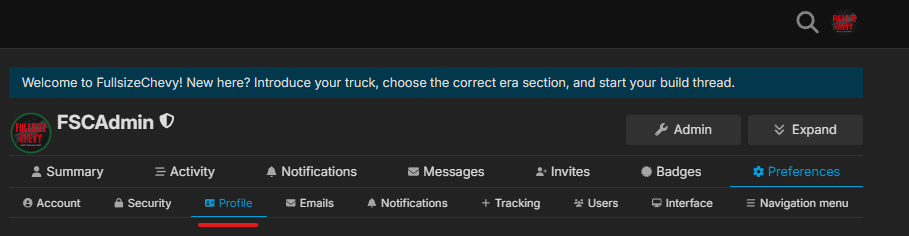
Inside your profile settings, locate the Profile section.
Step 4 — Complete your FSC Profile
About Me
Use this section to introduce yourself.
Common things members include:
-
Your truck(s)
-
Engine swaps or major mods
-
What you use the truck for (daily, tow rig, build project)
-
Your experience level
Example:
1998 Silverado Z71
5.3 LS swap
4L80E
Daily driver + weekend project
Location
Add your city, province/state, or region.
This helps with:
-
Local meetups
-
Regional advice (rust, emissions, climate)
-
Buying/selling parts nearby
Example:
Red Deer, Alberta
Website
Add a link if you have one.
Examples:
-
Build thread
-
YouTube channel
-
Social media page
-
Personal website or shop
Profile Header
The Profile Header is the wide banner image across the top of your profile.
Good options include:
-
Photo of your truck
-
Engine bay shot
-
Rolling shot
-
Garage/shop photo
User Card Background
This image appears when someone clicks your username and sees your user card popup.
Good choices:
-
Truck badge
-
Chevy bowtie
-
Build photo
-
Shop background
Featured Topic
This lets you highlight one thread directly on your profile.
Most members use this for:
-
Their build thread
-
A major project
-
A truck showcase
When someone views your profile, the thread appears as a quick link.
Save Changes
After editing your profile, scroll down and click Save Changes.
A complete profile helps other members recognize your truck and makes the forum easier to navigate.